
Shopify Image Alt Text- How to Add It, Write It Well and Avoid Common Mistakes
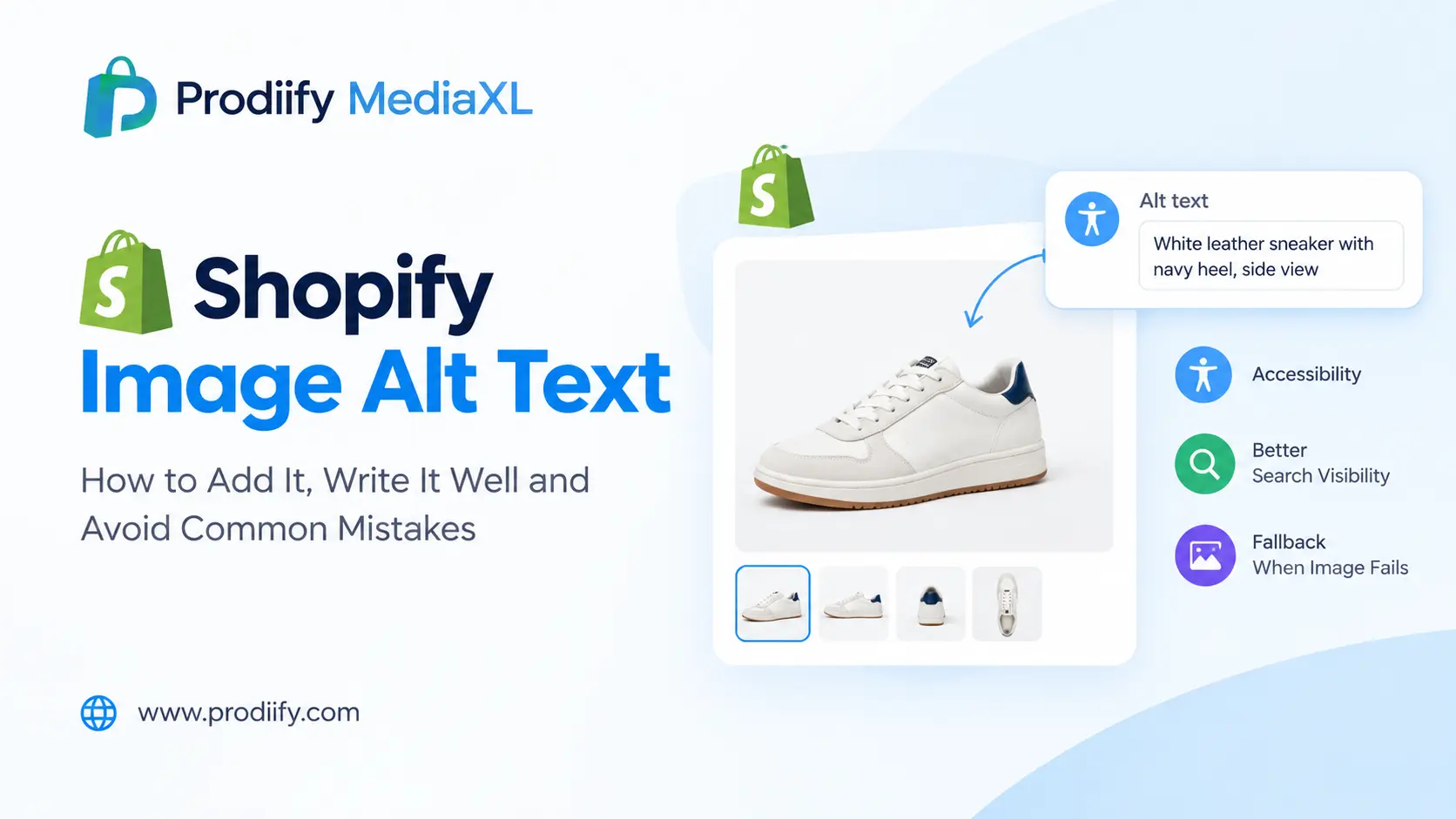
A practical guide to Shopify image alt text, with a writing formula, real examples and the exact steps inside Shopify admin.
Every product image on your store has a hidden line of text behind it. Most merchants either leave it empty or fill it with a keyword list. Both are missed opportunities.
Shopify image alt text is a short description of what an image shows. It matters for three reasons: shoppers using screen readers rely on it, it appears when an image fails to load, and it gives search engines and other tools extra context about your product. This guide shows where to add it, how to write it, and what to avoid.
What Is Alt Text and Why Does It Matter?
Shopify’s Help Center describes alt text as a description of a media item and an important part of a product description, shown if the media cannot load and used by assistive technology to describe an image to a visually impaired customer. It adds that including alt text can boost your website’s SEO.
In practice, alt text does three jobs:
- Accessibility. Shoppers who are blind or have low vision depend on it to understand your product photos.
- Fallback. If an image does not load, the text appears instead.
- Context. Search engines and AI tools use it as an extra signal about what the image shows. Our guide on how to check if ChatGPT recommends your products explains why clear product information matters more as AI shopping grows.
How to Add Shopify Image Alt Text to a Product
Here is how to add Shopify image alt text to a product image, following Shopify’s own steps:
- From your Shopify admin, go to Products.
- Click the name of the product you want to edit.
- On the product page, click a media item to open the preview page.
- Click Add alt text.
- Type your alt text and click Save alt text.
- Close the preview and repeat for each image.
Shopify recommends keeping it brief and descriptive: the maximum is 512 characters, but 125 or fewer is recommended. Shopify also notes you can upload alt text in a CSV file.
How to Add Alt Text to Theme Images
Banners, hero images and other images in your theme have their own alt text field. Per Shopify’s help documentation:
- Go to Online Store > Themes.
- Find your theme and click Customize.
- In the theme editor sidebar, click the section that has the image.
- Click Edit on the image.
- Enter the alt text and click Save, then Save again in the editor.
A Simple Formula for Writing Alt Text
Good alt text answers one question: what would someone need to know if they could not see this image?
Use this formula:
[Product type] + [key attribute] + [what the image shows]
| Image | Weak alt text | Better alt text |
|---|---|---|
| Front view of a wallet | wallet | Brown handmade leather bifold wallet, front view |
| Wallet being used | leather wallet best wallet cheap wallet | Hand pulling a card from a slim brown leather wallet |
| Detail shot | wallet closeup | Close-up of hand-stitched edge on a leather wallet |
| Size comparison | size | Slim leather wallet next to a smartphone for size comparison |
| Color option | blue | Navy blue leather wallet, open to show card slots |
Notice what the better versions do: they say what the product is, add one or two real details and describe the scene.
Seven Rules for Better Shopify Image Alt Text
- Describe, do not stuff. One guide stresses that alt text should describe the product, not repeat the product title or stuff keywords. See our guide to keyword stuffing on Shopify for what to write instead. testparty
- Make each image different. Avoid using the same alt text on every photo of a product. Name the angle, detail or context.
- Keep it short. Aim for one clear sentence, ideally under 125 characters.
- Add useful details. Color, material and context help shoppers and tools understand the product.
- Describe scenes, not just products. For lifestyle photos, say what is happening.
- Handle decorative images correctly. The same guide notes that decorative images like background patterns need empty alt text rather than missing alt text. testparty
- Do not start with “image of”. Screen readers already announce that it is an image.
Common Mistakes to Avoid
- Leaving it empty on product photos
- Repeating the product name word for word on every image
- Keyword lists such as “wallet cheap wallet best wallet buy wallet”
- Filenames as alt text, like “IMG_4521.jpg”
- Describing something the image does not show
- Forgetting variants, so every color shares the same description
Alt Text Works Best With Everything Around It
Alt text is one piece of the page, not a standalone fix. It works best alongside clear titles, descriptions and layout.
- Write descriptions that answer shopper questions. Our guide to enhanced product descriptions on Shopify shows the format. You can draft faster with an AI product description generator for Shopify, a Shopify product description generator or these ChatGPT prompts for Shopify product descriptions.
- Cover the basics in our Shopify SEO checklist, these Shopify SEO tips and the Shopify technical SEO checklist.
- Make the whole page persuasive. See our guide to Shopify product page design. If you also sell on marketplaces, Shopify vs Amazon product pages shows where the gap tends to appear. To understand richer pages, read about A+ Content for Shopify or compare options in our Amazon A+ Content alternative for Shopify breakdown.
- Prepare for AI shopping. Read our guides to Shopify AI search optimization for ChatGPT, how to get your Shopify products in ChatGPT and Shopify agentic commerce.
Get Help Writing It, Product by Product
Writing good alt text takes a minute per image, which adds up. Prodiify helps here: the AI SEO app for Shopify stores helps you write and refine product content, including alt text, one product at a time, so you spend less time starting from a blank box. For the visual side of your page, Prodiify MediaXL adds drag-and-drop blocks (Banner/Hero, Image + Text, Feature List, Gallery, Video and Carousel) to product pages, with no theme edits and no code.
A 15-Minute Alt Text Routine
- Pick your five best-selling products.
- Open each image in Shopify admin and check for missing or keyword-stuffed alt text.
- Rewrite using the formula: product type, key attribute, what the image shows.
- Make sure each image on a product has different alt text.
- Repeat with the next five products next week.
FAQs About Shopify image alt text
1.What is Shopify image alt text?
It is a short written description of an image that you add in Shopify admin. It is read aloud by screen readers, displayed when an image cannot load, and gives search engines extra context about the picture.
2.Where do I add alt text in Shopify?
Go to Products, open the product, click a media item, choose Add alt text, enter the description and save. For theme images, use Online Store > Themes > Customize and edit the image in the relevant section.
3.How long should alt text be?
Shopify allows up to 512 characters but recommends 125 or fewer. One clear sentence is usually enough.
4.Does alt text help SEO?
Shopify says it can boost SEO, and it gives search engines extra context. Treat it as one helpful signal among many, not a ranking trick.
5.Should every image have alt text?
Product and informational images should. Purely decorative images should have an empty alt attribute rather than none at all.
Better Shopify Image Alt Text Is a Small Fix With Lasting Value
Alt text takes a minute per image and helps shoppers, screen reader users and search tools understand what you sell. Start with your best sellers, describe what each image shows, and avoid keyword lists. Small, accurate details beat repetition every time.
Prodiify free on the Shopify App Store and write clearer product content, one product at a time.